
VTT Map Export: Prepare FantasyGen Maps for Foundry
Use FantasyGen VTT map export to add walls, doors, lights, calibrate a square grid, preview vision, and export UVTT or Foundry VTT 13/14 scenes.
A VTT map export should carry more than a pretty background image. Your virtual tabletop also needs to know where sight stops, which openings are doors, how large each square is, and where light comes from. FantasyGen now lets you prepare that scene data beside your generated map, then export it as Universal VTT or a version-specific Foundry VTT scene.
The goal is simple: move the repetitive scene setup out of the minutes before a session. Generate the tactical map, trace the boundaries that matter, test an approximate player view, and take the prepared package into your VTT.
Want to try the workflow? Create a top-down encounter with the AI battle map generator or build a room-based adventure with the dungeon map generator, then choose Prepare for VTT from the finished map.
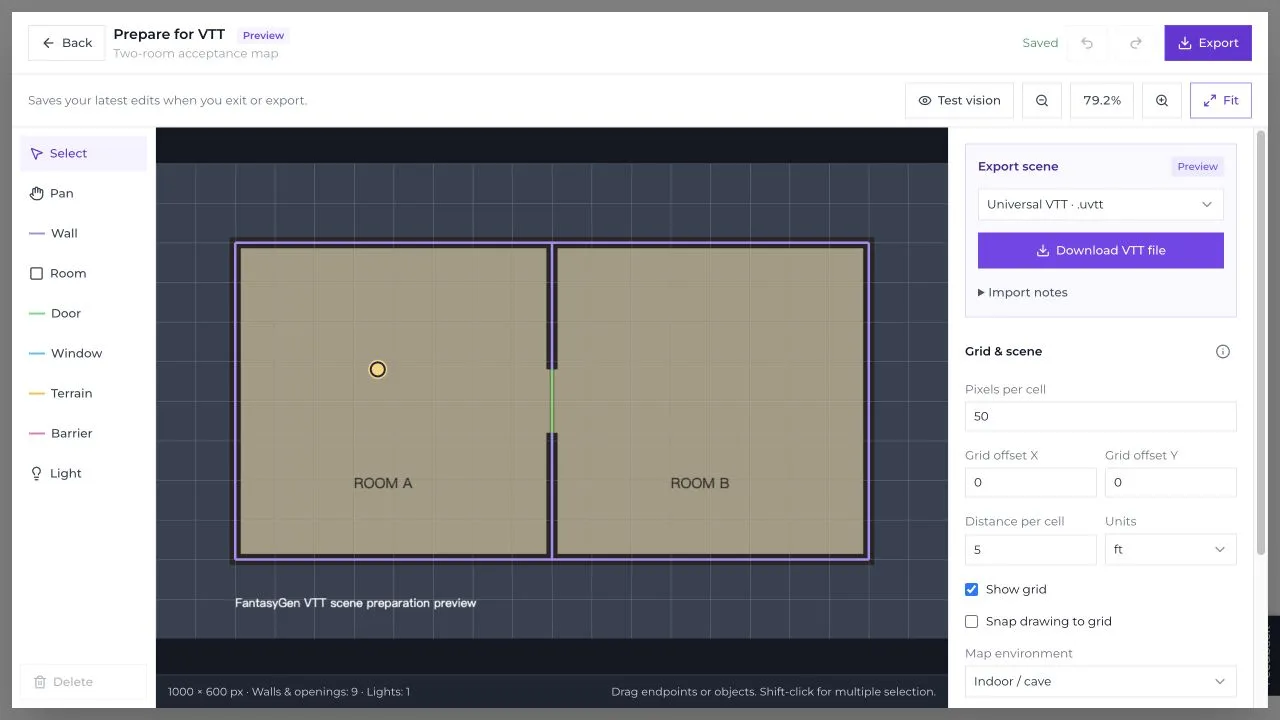
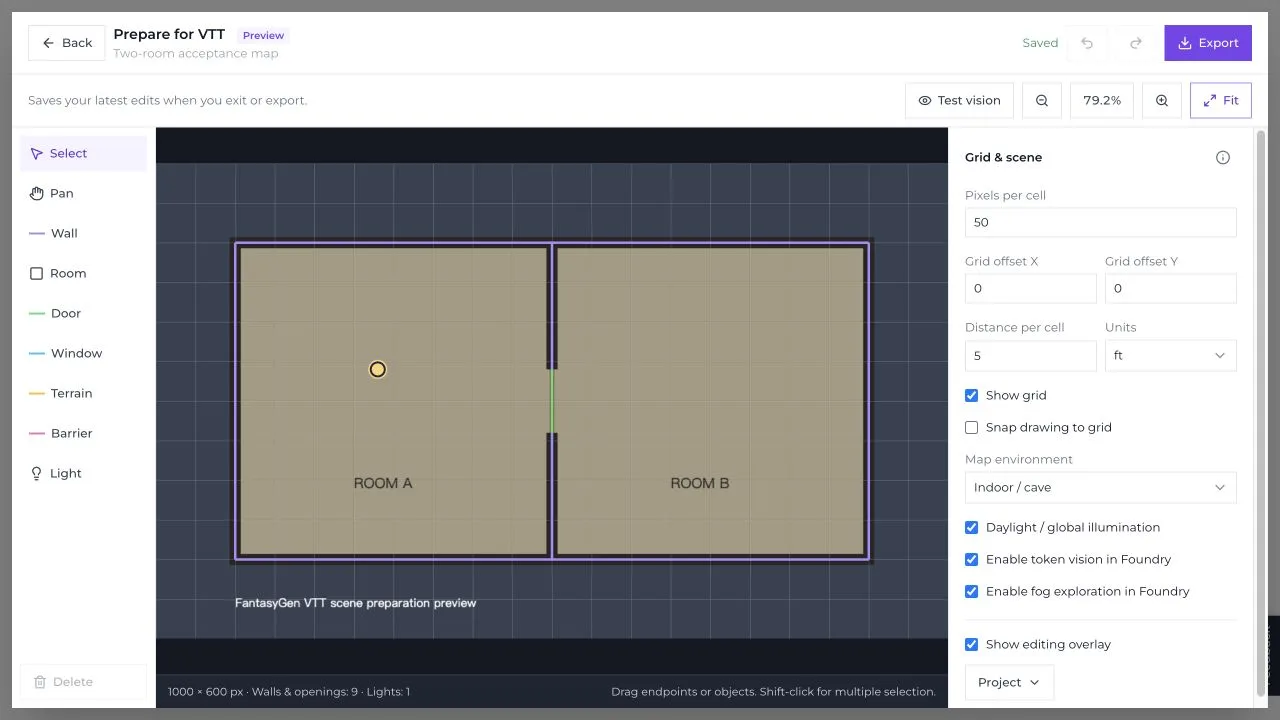 The scene preparation editor keeps the map, drawing tools, grid calibration, and Foundry scene settings in one view.
What FantasyGen VTT Map Export Actually Does
FantasyGen is still a map generator, not a virtual tabletop. It does not host a multiplayer session, roll dice, manage character sheets, or replace Foundry VTT. The export feature prepares a generated battle or dungeon map so a compatible VTT can do more with it than display a flat PNG.
Inside the editor, you can:
- draw walls and rectangular room boundaries;
- mark doors, including secret, open, closed, and locked states;
- add windows, terrain boundaries, and barriers;
- place generic light sources and set their bright and dim ranges;
- calibrate square size, grid offsets, distance, and units;
- turn Foundry token vision, fog exploration, and global illumination on or off;
- preview approximate line of sight with a movable test pawn;
- review geometry warnings, undo changes, and download a project JSON backup;
- export a
.uvttfile or a Foundry VTT 13/14 scene ZIP.
It is important to say what the feature does not do. FantasyGen does not use AI to detect walls automatically. You decide which painted edges should block sight or movement and trace them manually. That choice avoids a familiar problem with image-based wall detection: a shadow, rug edge, cliff texture, or decorative border can look like architecture to an algorithm even when it should not affect play.
Editing the scene and downloading a project backup are available before the final export step. Creating the formal VTT file requires an active FantasyGen subscription.
The Workflow: Generate, Trace, Test, Export
The VTT export workflow has four practical stages.
- Generate a tactical map. Start with a top-down battle map or dungeon map. Clear room edges, paths, doors, and encounter spaces make later tracing easier.
- Open Prepare for VTT. The action appears on eligible tactical maps. FantasyGen loads the map into the scene editor with its initial grid information.
- Calibrate and trace. Match the square grid, then add the boundaries, openings, and lights that affect play. You do not need to outline every table leg or pile of rubble. Trace the geometry that changes a player's decisions.
- Test and export. Use Test Vision for a quick sanity check, review any warnings, then select Universal VTT, Foundry VTT 13, or Foundry VTT 14.
Start with the outer boundary of the playable area. Add major room divisions next, then doors and windows. Lights come last. That order makes missing wall gaps easier to spot and keeps you from polishing lighting around geometry you may still change.
Two prompts that produce practical VTT maps
The image style matters less than the structure described in the prompt. Rectangular rooms are quick to trace; organic caves need more wall points but can create stronger exploration scenes.
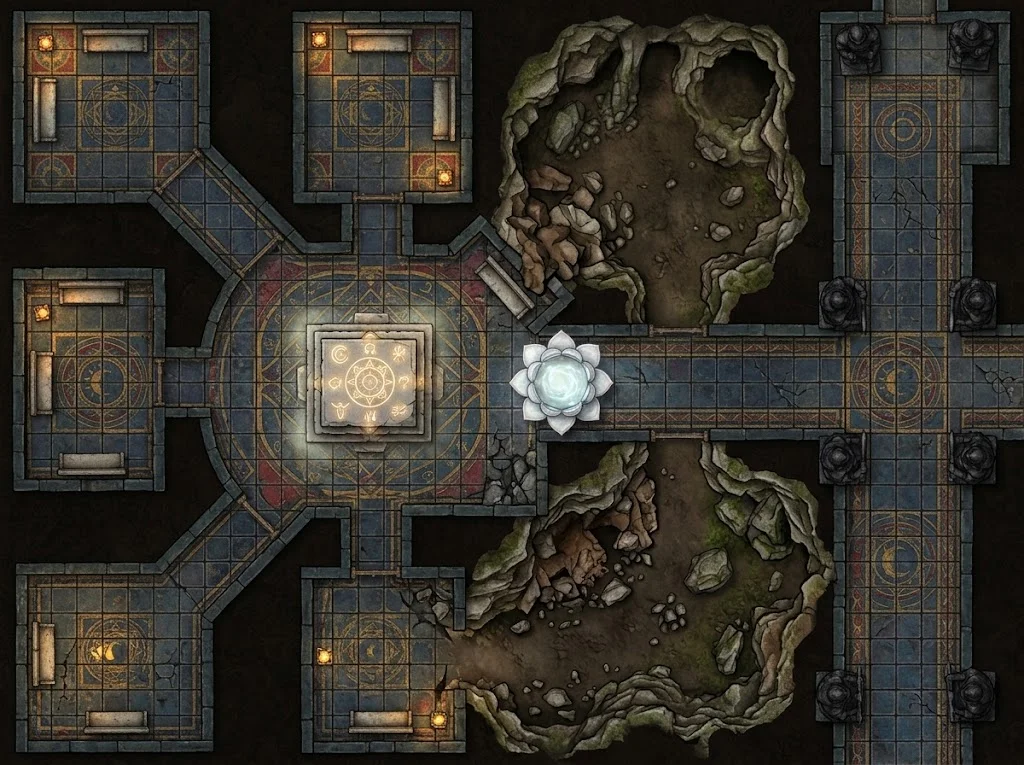 FantasyGen prompt: "A temple dungeon with ornate floor tiles, altar room with divine symbols, holy water font, meditation chambers, collapsed sections revealing natural cave beneath, and guardian statues flanking corridors." The strong room divisions make doors and wall segments easy to identify.
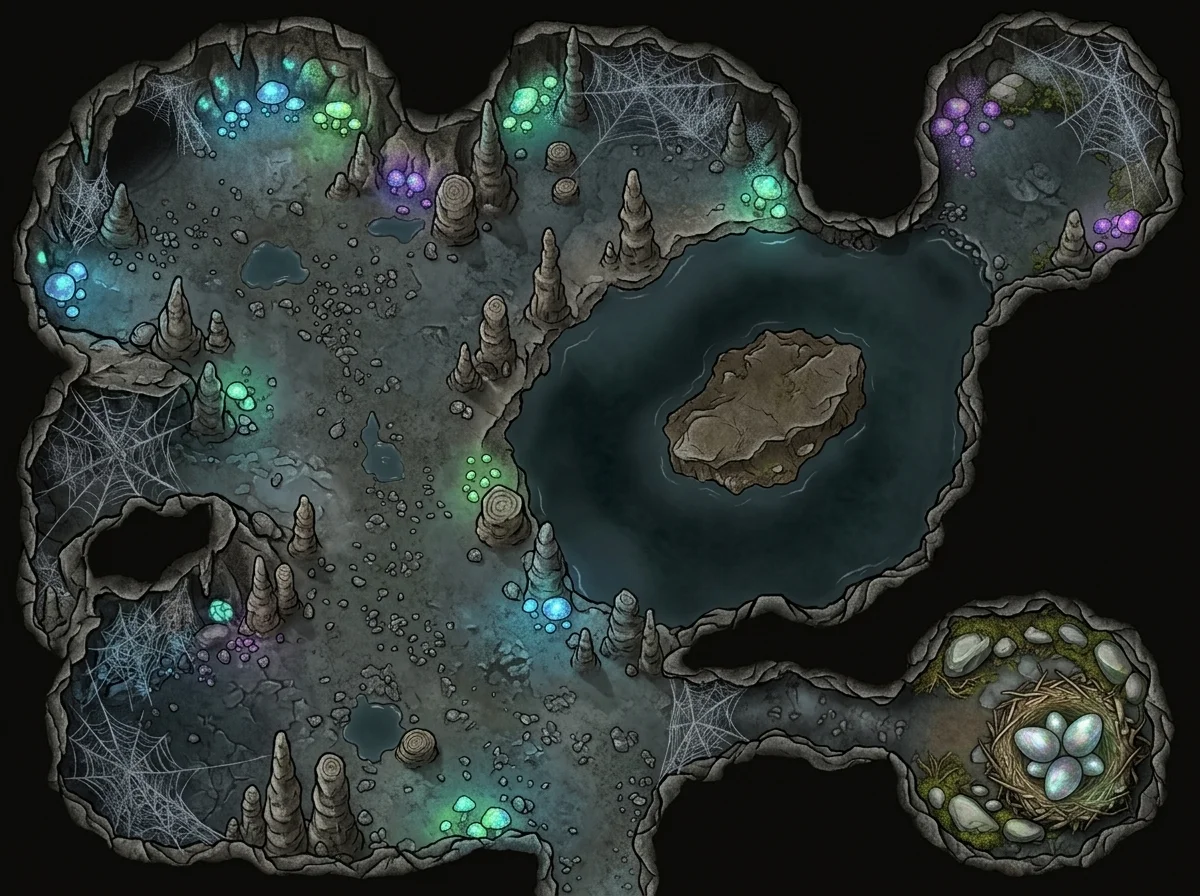 FantasyGen prompt: "A natural underground cave dungeon with stalagmites and stalactites, underground lake with a small island, bioluminescent fungi patches, spider web clusters, and a narrow passage to a hidden dragon egg nest." Curved cave walls need more points, so trace only boundaries that matter to movement or vision.
If your first result is too busy, simplify the prompt before spending time on scene data. Phrases such as “flat top-down view,” “clear room boundaries,” “readable doorways,” and “open tactical floor space” tend to produce a better starting point than requesting dozens of tiny props.
Prepare Walls, Doors, Windows, Terrain, and Lights
The drawing toolbar separates scene geometry by gameplay purpose.
Walls are the default for solid architecture. Use them around rooms, along corridor edges, and anywhere both vision and movement should stop. The Room tool is useful for fast rectangular boundaries; the Wall tool gives you precise individual segments for irregular layouts.
Doors preserve an opening in a wall while carrying a door state. A closed or locked door should block the route until the target VTT changes its state. An open door begins passable. A secret door is useful in a Foundry scene, but Universal VTT importers do not all share the same secret-door behavior, so FantasyGen degrades it to a wall in UVTT rather than promising unsupported semantics.
Windows and special boundaries cover places where sight, light, and movement should not behave like a solid wall. They are useful for barred cells, glass partitions, balconies, cliffs, curtains, and magical boundaries. Because importers interpret these cases differently, treat the exported settings as a starting point and verify them after import.
Lights describe a point source with bright and dim ranges. Use them for torches, braziers, glowing runes, or lamps that are already part of the encounter. You can also set the scene's environment to indoor, outdoor, or mixed and decide whether Foundry should begin with global illumination.
Do not recreate the entire painting as data. A bookshelf that provides cover may matter; decorative cracks in the floor probably do not. The most useful VTT scene is not the one with the highest segment count. It is the one that produces the right information at the table.
Calibrate the Grid and Test Player Vision
Grid calibration connects image pixels to game distance. Set the number of pixels per cell, adjust the X and Y offsets until the overlay follows the painted map, then choose a distance per cell and either feet or meters. You can show or hide the grid while working and turn snapping on when you want endpoints to follow square intersections.
The current export workflow is built for square grids. A source image may contain hex artwork, but formal scene export requires square-grid calibration. For hex travel maps, regional maps, and world maps, a standard image export is usually the more appropriate result. VTT scene data is most valuable at encounter scale.
Test Vision provides a fast check before export. Turn off global illumination for a dark interior, place the test pawn in a room, and inspect what remains visible. A temporary torch can help you distinguish a missing wall from an area that is simply unlit. You can also click a visible door to test its effect without changing the saved door state.
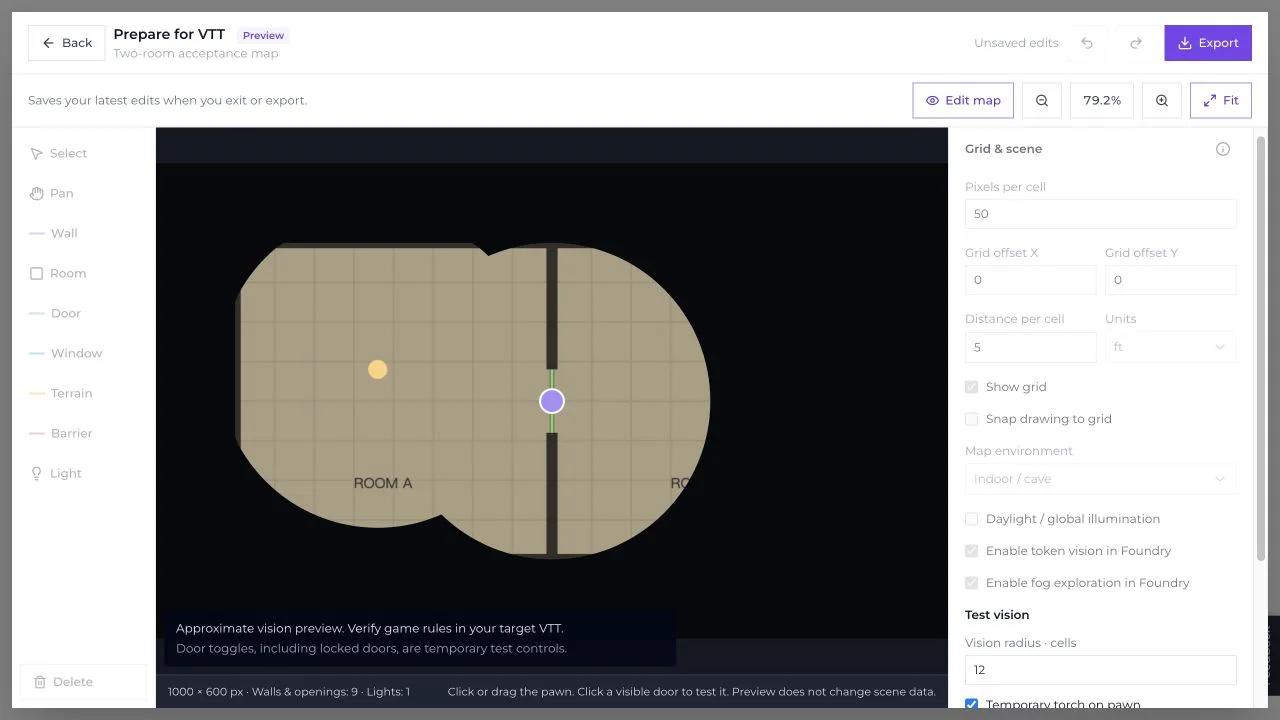 Test Vision is an approximate preview for finding obvious gaps. The final lighting and vision rules come from the VTT that imports the scene.
That last distinction matters. FantasyGen's preview is not Foundry's lighting engine running in the browser. Systems, modules, importer versions, and VTT settings can change the final result. Use the preview to catch an open corner or misplaced door, then run one player-token test in the destination scene.
Choose the Right VTT Export Format
FantasyGen currently offers three formal export targets.
| Export target | File | Best use | What to expect |
|---|---|---|---|
| Universal VTT | .uvtt |
Moving scene data through a compatible importer | Embedded map image, grid, line-of-sight segments, portals, and lights |
| Foundry VTT 13 | .zip |
A Foundry installation running version 13 | Scene JSON, map PNG, project JSON, README, and the untouched source image |
| Foundry VTT 14 | .zip |
A Foundry installation running version 14 | Version-specific scene JSON plus the same supporting files |
 Choose the destination format only after the grid and geometry are ready. Foundry 13 and 14 receive separate exports because scene schemas change between major versions.
Choose Universal VTT when your destination has a UVTT importer and you want a general exchange file. Foundry users can install a compatible importer such as the Universal Battlemap Importer, but its behavior—and the behavior of importers on other platforms—remains outside FantasyGen's control.
Choose the matching Foundry VTT version when you want a direct scene package. The ZIP is not an installable Foundry module. Unzip it, upload or select the included map image as the scene background, and import the supplied scene JSON into a new, empty scene. Foundry's own Scenes documentation warns that importing scene data overwrites the existing scene's data, which is why an empty destination is the safest choice. In Foundry 14, use the Map level when the import instructions call for it.
After import, compare one known grid intersection in FantasyGen with the same point in Foundry. Then open and close a door, move a test token around a corner, and check one light. Three quick checks reveal most format or alignment problems.
What Transfers Cleanly—and What Still Needs Checking
The most dependable data is structural: the source image, calibrated square grid, ordinary wall segments, door locations, and generic light positions. These concepts exist across the supported exports, even if their field names differ.
Some behavior is format-specific:
- Secret doors: Foundry exports can preserve the secret flag. UVTT represents them conservatively as walls.
- Door state: Open, closed, and locked states are included, but an importer may map them differently.
- Windows and special barriers: Sight, light, and movement combinations do not have identical meanings in every VTT.
- Lighting: Position and ranges transfer, while rendering, darkness, animation, and system rules remain the target VTT's job.
- Vision: The FantasyGen preview is approximate. The destination VTT is authoritative.
The editor accepts normal static PNG, JPEG, and WebP source images up to 20 MiB, 24 megapixels, and 8192 pixels on either side. Animated images and unusual image payloads are not suitable scene sources.
There is also a practical saving rule to remember: the latest VTT project is saved when you exit the editor or export. It is not a continuous autosave history. If the browser crashes while you have unsaved changes, those changes may be lost. Download the project JSON before a long break or a risky browser update. The project file stores the scene data, not the source map itself, so keep the original image too.
If you want the underlying wall concepts, Foundry's Walls documentation is the best reference for normal walls, doors, terrain walls, and related behavior.
When This Workflow Saves the Most Time
Prepared VTT export is most useful when you generate maps close to play time, reuse a reliable square-grid workflow, or run exploration where doors and line of sight carry real information. A five-room dungeon, a manor, a prison, or a compact cave network benefits more than an open field with no vision blockers.
It is also useful when the person generating the map is not the person hosting Foundry. The map maker can prepare the geometry, export the versioned package, and hand it to the GM. The GM still verifies the scene, but does not need to infer every boundary from the artwork.
The workflow is less useful for continent maps, hex-crawl overviews, handouts, and decorative location art. Those images usually need pan and zoom, not doors and token vision. A normal PNG or WebP is simpler. Likewise, if you need exact manual placement of hundreds of props, complex multi-level automation, or system-specific triggers, finish that work inside your VTT or a dedicated map editor.
FantasyGen's role is the middle ground: generate the encounter image quickly, add enough structured data to make it playable, and leave system-specific control to the tabletop built for it.
A Practical VTT Map Export Checklist
Before export:
- use a static top-down tactical map;
- calibrate a square grid and confirm the offsets;
- trace the outer playable boundary first;
- add only walls and special boundaries that affect play;
- mark doors and verify their starting states;
- place essential lights and choose the scene environment;
- run Test Vision from both sides of at least one doorway;
- resolve geometry warnings;
- download a project JSON backup if the setup took meaningful time;
- select the Foundry version that matches your installation, or UVTT for a compatible importer.
After import:
- use a new empty Foundry scene;
- select the included map image as the background;
- check grid scale and offset at more than one point;
- test a door, a wall corner, and a light with a player token;
- keep the ZIP, project JSON, and original source image together.
Prepare your next encounter: generate a map in FantasyGen Studio, open Prepare for VTT, and export the scene once the grid, walls, doors, and lights pass your test. Compare plans on the pricing page if you need formal VTT exports.
The export file is not the finish line; a verified player view is. But moving grid, geometry, doors, and lights into one preparation step closes much of the gap between “the map looks ready” and “the scene plays correctly.”
Related Reading
- The VTT Dungeon Map Settings I Wish I Knew at Session 1 — Grid, fog, lighting, and destination-side checks for Foundry and Roll20.
- D&D Map Scale: The 5-Foot Grid Explained — Choose the right encounter scale before calibrating your VTT scene.
- How I Prep a D&D Dungeon in 20 Minutes — A complete map-to-session workflow for time-limited prep.
- Battle Map Generator — Create top-down tactical maps for encounters.
- Dungeon Map Generator — Generate room-based dungeons, caves, crypts, and lairs.

Written by
Toby
Indie Developer & Creator of FantasyGen
Toby is an independent developer focused on building AI-powered creative tools. He created FantasyGen to help game masters and worldbuilders generate fantasy maps instantly — no artistic skills required.
Continue the Campaign
The VTT Dungeon Map Settings I Wish I Knew at Session 1
The exact Foundry VTT and Roll20 dungeon map settings I use after 140 sessions — grid alignment, fog of war, lighting, and the import workflow that actually works.
How to Map a Cave System Without Getting Lost in Your Own Design
My 5-step workflow for designing cave map systems that stay playable. Start with entrance type, limit branches, add landmarks, loop dead ends — no spaghetti.
Desert Encounters That Aren't Just Heat and Thirst
Desert encounter prep that goes beyond survival mechanics. Caravan politics, sandstorm puzzles, buried ruins, and creature lairs for your desert biome map.